Symlink/Verknüpfungen erstellen für Plex

  • Ab sofort steht euch hier im Forum die neue Add-on Verwaltung zur Verfügung – eine zentrale Plattform für alles rund um Erweiterungen und Add-ons für den DSM.

    Damit haben wir einen Ort, an dem Lösungen von Nutzern mit der Community geteilt werden können. Über die Team Funktion können Projekte auch gemeinsam gepflegt werden.

    Was die Add-on Verwaltung kann und wie es funktioniert findet Ihr hier

    Hier geht es zu den Add-ons

Jedich

Benutzer
Registriert
04. Aug. 2023
Beiträge
54
Reaktionspunkte
1
Punkte
14
Hallo zusammen.
Folgendes habe ich vor.
Ich möchte auf meinem NAS Verknüpfungen bzw Symlinks erstellen, damit ich keine doppelten Dateien erstellen muss.

Beispiel:
Auf HDD 1 habe ich Filme, Musik, Fotos drauf
Nun möchte ich einen verknüpften Ordner erstellen der zB nach Genre oder Orten sortiert sein soll.
Heißt ich verknüpfe die Unterordner aus HDD1 auf einen neuen Ordner.
Nochmal vereinfachter dargestellt:
HDD1 - Filme2000
HDD1 - Fotos-Frau
HDD3 - Fotos-Kids

Nun stelle ich mir das in etwa so vor:
HDD1 - Filme Action. Hier kommen die Filme vom Filme2000-Order rein, aber als Verknüpfung.
HDD1 - Zoo Hannover. Hier kommen die Fotos vom Fotos-Frau -Ordner rein, aber als Verknüpfung.
HDD3 - Geburtstagfeier. Hier kommen die Fotos von Fotos-Kids -Ordner rein, aber als Verknüfung.

Wie erstelle ich nun zB den Filme Action -Ordner, Zoo Hannover -Order oder einen Geburtstagsfeier -Order die verknüpft sind?
Und auch so, dass Plex diese dann lesen und ins Plexverzeichnis einlesen kann?

Ich kann zwar von Windows aus auf meinem Nas zugreifen und Verknüpfungen erstellen, auf dem NAS allerdings erscheinen diese Ordner aber als .ink (glaube ich). Das kann Plex aber nicht lesen.

Für Tips und Tricks wäre ich euch dankbar.
 
Die Windowsverknüpfungen (*.lnk, l wie L nicht i) sind selbst unter Windows außerhalb des Windows Explorers nicht brauchbar. Da braucht es schon Sym- oder Hardlinks bzw. Reparsepoints wie Junctions. Die Symlinks wirst du aber auf der DS erstellen müssen, damit Plex auf der DS damit überhaupt etwas anfangen kann. Bei BTRFS als Dateisystem könntest du auch die Schnellkopie (ist standardmäßig aus) nutzen, solange sich alles auf einem Volumen befindet.

Ich kenne Plex nicht, so dass ich auch nicht sagen kann, ob Plex überhaupt mit Softlinks umgehen kann. Auch scheint mir dein Vorhaben unnötig unübersichtlich und umständlich zu werden, wenn wenn da noch mehr Ordner hinzukommen. Die Dateien zu taggen und dann nach Tags zu suchen oder Kategorien zu erstellen, scheint mir da sinnvoller.
 
Zuletzt bearbeitet:
Each Plex library can include multiple folders. "Plex webui > Settings > Manage/Libraries > Edit Library > Add Folders > Browse For Media Folder..."

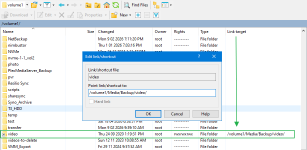
Or you can create symlinks on the NAS (via SSH or Task Planner - or in WinSCP when connected to the NAS as root).

1777323171791.png
 
Zuletzt bearbeitet:
Die Symlinks wirst du aber auf der DS erstellen müssen
Das wäre für mich in Ordnung. Über Windows wäre das wohl etwas komfortabler, aber wenn ich weiß wie das auf dem NAS funktioniert schaue ich mir das gerne an.
Bei BTRFS als Dateisystem
Ist es nicht.
solange sich alles auf einem Volumen befindet
Das ist es und soll auch so sein.
Each Plex library can include multiple folders. "Plex webui > Settings > Manage/Libraries > Edit Library > Add Folders > Browse For Media Folder..."
But thats not what I want. Those Folders i have to create first before adding to Plex.
Or you can create symlinks on the NAS (via SSH or Task Planner - or in WinSCP when connected to the NAS as root).
That sounds great, but arent there any issues when you try to get Root Access with WinSCP? I have googled it a while a ago. Seems not to be that easy. Correct me if im wrong.
Is there now an easy way to get Root Access to your NAS? If so i would test it and see if creating symlink is that easy.
Would be much easier with WinSCP instead using SSH i guess.

Thanks so far.
 
Here's my notes from years ago.

Enable WinSCP root login in DSM 7 the hard way

First make sure your computer's IP address is in the Auto Block Allow List - or temporarily disable auto block.

Code:
1. Login to a SSH shell with your admin account.
2. sudo -i
3. Type your password then press enter.
4. Check that the prompt changed from $ to #
5. vi /etc/ssh/sshd_config
6. Press i to enter insert mode
7. Scroll to where you want to insert.
8. Press enter for new line.
9. PermitRootLogin yes
10. Press ESC to exit insert mode.
11. Press Ctl then type :wq then ENTER, or Ctl then type :x then ENTER
12. cat /etc/ssh/sshd_config | grep PermitRootLogin
13. Check your edit was saved.
14. Set the root password to your admin account's password:
     synouser --setpw root <yourpassword>
     Replace <yourpassword> with admin account's password.
     Escape any special characters that cause an error.
     Escape them with a backslash \
15. Disable SSH then enable SSH to restart the SHH service, or reboot.


Enable WinSCP root login in DSM 7 the easy way

A month ago I got fed up with doing all those steps every time I setup a new NAS so I wrote a script to do it all for me. See enable_ssh_root.zip

I notice there's a harmless block of code in that script that makes no sense. Maybe I added the "Enable SSH if not enabled" code so the script could be run via task planner... except then there's no way to type your password. Maybe I was going to pass the password as a parameter but never finished it.
 

Anhänge

Das hier klingt aber nicht so:
Vielleicht habe ich micht etwas unglücklich ausgedrückt.
Die HDDs sind die jeweiligen Partitionen.
Heißt auf HDD1 sollen die Verknüpfungen auch auf HDD1 sein, ebenso wie HDD2 und HDD3.
Ich hätte das vielleicht mit erwähnen sollen, hast Recht.
First make sure your computer's IP address is in the Auto Block Allow List - or temporarily disable auto block.
first time hearing of an "auto block allow list". i guess if my pc can communicate with my nas within the same network (with ssh for example) its okay then.
1. Login to a SSH shell with your admin account.
2. sudo -i
3. Type your password then press enter.
4. Check that the prompt changed from $ to #
5. vi /etc/ssh/sshd_config
6. Press i to enter insert mode
7. Scroll to where you want to insert.
8. Press enter for new line.
9. PermitRootLogin yes
10. Press ESC to exit insert mode.
11. Press Ctl then type :wq then ENTER, or Ctl then type :x then ENTER
12. cat /etc/ssh/sshd_config | grep PermitRootLogin
13. Check your edit was saved.
14. Set the root password to your admin account's password:
14.1 synouser --setpw root <yourpassword>
14.2 Replace <yourpassword> with admin account's password.
14.3 Escape any special characters that cause an error.
14.4 Escape them with a backslash \
15. Disable SSH then enable SSH to restart the SHH service, or reboot.
Let me break this down for me.
1-4 is clear, but one thing: i use my Name for login, which is in the Admin-Group and has full Admin Rights.
5-11 i use nano instead of vi. should do the same job.
12 + 13. its showing me:
Code:
PermitRootLogin yes
So my changes are saved.
14. sry but i dont get it. The Root-Password (which i actually dont know) should be the same as the Admin-Passwort?
14.1 My Synouser is for example "Michael". When i login into my Nas with SSH i use Michael as User and use my Passwort, so i have my full access to it.
14.2 What Password exactly (root or synousers) should i change?
14.3 There is only 1 special character for security reasons, but should not causes any errors.

WinSCP:
What i've heard i should use the shell "sudo su -" when trying to connect. "/bin/bash" is the standard shell.
is that correct or doesnt this any affect?
 
Auf dem NAS kommt man mit den Partitionen doch gar nicht in Berührung. Da geht es nur um die Volumen.
 

Additional post fields


Kaffeautomat

Wenn du das Forum hilfreich findest oder uns unterstützen möchtest, dann gib uns doch einfach einen Kaffee aus.

Als Dankeschön schalten wir deinen Account werbefrei.

:coffee:

Hier gehts zum Kaffeeautomat