Nextcloud AIO v7.9.0 per Docker

  • Ab sofort steht euch hier im Forum die neue Add-on Verwaltung zur Verfügung – eine zentrale Plattform für alles rund um Erweiterungen und Add-ons für den DSM.

    Damit haben wir einen Ort, an dem Lösungen von Nutzern mit der Community geteilt werden können. Über die Team Funktion können Projekte auch gemeinsam gepflegt werden.

    Was die Add-on Verwaltung kann und wie es funktioniert findet Ihr hier

    Hier geht es zu den Add-ons

Tuxnet

Benutzer
Registriert
02. Jan. 2019
Beiträge
639
Reaktionspunkte
76
Punkte
48
Hat hier jemand erfahrungen mit Nextcloud AIO ?

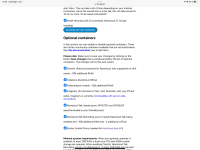
Ich bekomme immer bei der Erstellung folgenden Fehler.

Domain does not point to this server or the reverse proxy is not configured correctly. See the mastercontainer logs for more details. ('sudo docker logs -f nextcloud-aio-mastercontainer')

Ich gehe aber auf das webinterface per subdomain https://testcloud.domainname.dyndns.org.
Verstehen muns ich das nicht,
ich finde auch keinen Fehler im log.

Ich kann mir nur vorstellen, dass ich einen fehler in der compose.yaml gemacht habe.
Hier mal meine compose.yaml

services:
nextcloud-aio-mastercontainer:
image: nextcloud/all-in-one:latest
init: true
restart: always
container_name: nextcloud-aio-mastercontainer # This line is not allowed to be changed as otherwise AIO will not work correctly
volumes:
- nextcloud_aio_mastercontainer:/mnt/docker-aio-config # This line is not allowed to be changed as otherwise the built-in backup solution will not work
- /var/run/docker.sock:/var/run/docker.sock:ro # May be changed on macOS, Windows or docker rootless. See the applicable documentation. If adjusting, don't forget to also set 'WATCHTOWER_DOCKER_SOCKET_PATH'!
ports:
- 8449:80 # Can be removed when running behind a web server or reverse proxy (like Apache, Nginx, Cloudflare Tunnel and else). See https://github.com/nextcloud/all-in-one/blob/main/reverse-proxy.md
- 8448:8080
- 8447:8443 # Can be removed when running behind a web server or reverse proxy (like Apache, Nginx, Cloudflare Tunnel and else). See https://github.com/nextcloud/all-in-one/blob/main/reverse-proxy.md
environment: # Is needed when using any of the options below
# - AIO_DISABLE_BACKUP_SECTION=false # Setting this to true allows to hide the backup section in the AIO interface. See https://github.com/nextcloud/all-in-one#how-to-disable-the-backup-section
- APACHE_PORT=11000 # Is needed when running behind a web server or reverse proxy (like Apache, Nginx, Cloudflare Tunnel and else). See https://github.com/nextcloud/all-in-one/blob/main/reverse-proxy.md
# - APACHE_IP_BINDING=127.0.0.1 # Should be set when running behind a web server or reverse proxy (like Apache, Nginx, Cloudflare Tunnel and else) that is running on the same host. See https://github.com/nextcloud/all-in-one/blob/main/reverse-proxy.md
# - BORG_RETENTION_POLICY=--keep-within=7d --keep-weekly=4 --keep-monthly=6 # Allows to adjust borgs retention policy. See https://github.com/nextcloud/all-in-one#how-to-adjust-borgs-retention-policy
# - COLLABORA_SECCOMP_DISABLED=false # Setting this to true allows to disable Collabora's Seccomp feature. See https://github.com/nextcloud/all-in-one#how-to-disable-collaboras-seccomp-feature
- NEXTCLOUD_DATADIR=/volume1/docker/nextcloud-all-in-one/data # Allows to set the host directory for Nextcloud's datadir. ⚠️⚠️⚠️ Warning: do not set or adjust this value after the initial Nextcloud installation is done! See https://github.com/nextcloud/all-in-one#how-to-change-the-default-location-of-nextclouds-datadir
- NEXTCLOUD_MOUNT=/volume1/docker/nextcloud-all-in-one/nextcloud-all-in-one # Allows the Nextcloud container to access the chosen directory on the host. See https://github.com/nextcloud/all-in...d-container-to-access-directories-on-the-host
- NEXTCLOUD_UPLOAD_LIMIT=10G # Can be adjusted if you need more. See https://github.com/nextcloud/all-in-one#how-to-adjust-the-upload-limit-for-nextcloud
- NEXTCLOUD_MAX_TIME=3600 # Can be adjusted if you need more. See https://github.com/nextcloud/all-in-one#how-to-adjust-the-max-execution-time-for-nextcloud
- NEXTCLOUD_MEMORY_LIMIT=4096M # Can be adjusted if you need more. See https://github.com/nextcloud/all-in-one#how-to-adjust-the-php-memory-limit-for-nextcloud
# - NEXTCLOUD_TRUSTED_CACERTS_DIR=/path/to/my/cacerts # CA certificates in this directory will be trusted by the OS of the nexcloud container (Useful e.g. for LDAPS) See See https://github.com/nextcloud/all-in-one#how-to-trust-user-defined-certification-authorities-ca
# - NEXTCLOUD_STARTUP_APPS=deck twofactor_totp tasks calendar contacts notes # Allows to modify the Nextcloud apps that are installed on starting AIO the first time. See https://github.com/nextcloud/all-in...-apps-that-are-installed-on-the-first-startup
# - NEXTCLOUD_ADDITIONAL_APKS=imagemagick # This allows to add additional packages to the Nextcloud container permanently. Default is imagemagick but can be overwritten by modifying this value. See https://github.com/nextcloud/all-in...ckages-permanently-to-the-nextcloud-container
- NEXTCLOUD_ADDITIONAL_PHP_EXTENSIONS=imagick # This allows to add additional php extensions to the Nextcloud container permanently. Default is imagick but can be overwritten by modifying this value. See https://github.com/nextcloud/all-in...nsions-permanently-to-the-nextcloud-container
# - NEXTCLOUD_ENABLE_DRI_DEVICE=true # This allows to enable the /dev/dri device in the Nextcloud container. ⚠️⚠️⚠️ Warning: this only works if the '/dev/dri' device is present on the host! If it should not exist on your host, don't set this to true as otherwise the Nextcloud container will fail to start! See https://github.com/nextcloud/all-in-one#how-to-enable-hardware-transcoding-for-nextcloud
# - NEXTCLOUD_KEEP_DISABLED_APPS=false # Setting this to true will keep Nextcloud apps that are disabled in the AIO interface and not uninstall them if they should be installed. See https://github.com/nextcloud/all-in-one#how-to-keep-disabled-apps
# - TALK_PORT=3478 # This allows to adjust the port that the talk container is using. See https://github.com/nextcloud/all-in-one#how-to-adjust-the-talk-port
# - WATCHTOWER_DOCKER_SOCKET_PATH=/var/run/docker.sock # Needs to be specified if the docker socket on the host is not located in the default '/var/run/docker.sock'. Otherwise mastercontainer updates will fail. For macos it needs to be '/var/run/docker.sock'
# networks: # Is needed when you want to create the nextcloud-aio network with ipv6-support using this file, see the network config at the bottom of the file
# - nextcloud-aio # Is needed when you want to create the nextcloud-aio network with ipv6-support using this file, see the network config at the bottom of the file

# # Optional: Caddy reverse proxy. See https://github.com/nextcloud/all-in-one/blob/main/reverse-proxy.md
# # You can find further examples here: https://github.com/nextcloud/all-in-one/discussions/588
# caddy:
# image: caddy:alpine
# restart: always
# container_name: caddy
# volumes:
# - ./Caddyfile:/etc/caddy/Caddyfile
# - ./certs:/certs
# - ./config:/config
# - ./data:/data
# - ./sites:/srv
# network_mode: "host"

volumes:
nextcloud_aio_mastercontainer:
name: nextcloud_aio_mastercontainer # This line is not allowed to be changed as otherwise the built-in backup solution will not work

# # Optional: If you need ipv6, follow step 1 and 2 of https://github.com/nextcloud/all-in-one/blob/main/docker-ipv6-support.md first and then uncomment the below config in order to activate ipv6 for the internal nextcloud-aio network.
# # Please make sure to uncomment also the networking lines of the mastercontainer above in order to actually create the network with docker-compose
# networks:
# nextcloud-aio:
# name: nextcloud-aio # This line is not allowed to be changed as otherwise the created network will not be used by the other containers of AIO
# driver: bridge
# enable_ipv6: true
# ipam:
# driver: default
# config:
# - subnet: fd12:3456:789a:2::/64 # IPv6 subnet to use
 

Anhänge
  • IMG_9089.png
    IMG_9089.png
    352,9 KB · Aufrufe: 34
Zuletzt bearbeitet:
Danke für den Hinweiss @alexhell

Ich habe ein 0 vergessen.
 
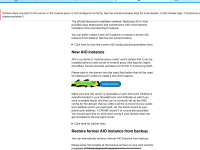
Ich starte gerade die installation über das GUI,
Wenn das alles so einfach geht bin ich schwer begeistert.
 

Anhänge

  • IMG_9090.png
    IMG_9090.png
    227,5 KB · Aufrufe: 48
Zuletzt bearbeitet:
Ich bin wirklich sehr begeistert.
Jetzt geht es in die Testphase


Hier mal mein Stack :
services:
nextcloud-aio-mastercontainer:
image: nextcloud/all-in-one:latest
init: true
restart: always
container_name: nextcloud-aio-mastercontainer # This line is not allowed to be changed as otherwise AIO will not work correctly
volumes:
- nextcloud_aio_mastercontainer:/mnt/docker-aio-config # This line is not allowed to be changed as otherwise the built-in backup solution will not work
- /var/run/docker.sock:/var/run/docker.sock:ro # May be changed on macOS, Windows or docker rootless. See the applicable documentation. If adjusting, don't forget to also set 'WATCHTOWER_DOCKER_SOCKET_PATH'!
ports:
# - 80:80 # Can be removed when running behind a web server or reverse proxy (like Apache, Nginx, Cloudflare Tunnel and else). See https://github.com/nextcloud/all-in-one/blob/main/reverse-proxy.md
- 8448:8080
# - 8443:8443 # Can be removed when running behind a web server or reverse proxy (like Apache, Nginx, Cloudflare Tunnel and else). See https://github.com/nextcloud/all-in-one/blob/main/reverse-proxy.md
environment: # Is needed when using any of the options below
# - AIO_DISABLE_BACKUP_SECTION=false # Setting this to true allows to hide the backup section in the AIO interface. See https://github.com/nextcloud/all-in-one#how-to-disable-the-backup-section
- APACHE_PORT=11000 # Is needed when running behind a web server or reverse proxy (like Apache, Nginx, Cloudflare Tunnel and else). See https://github.com/nextcloud/all-in-one/blob/main/reverse-proxy.md
# - APACHE_IP_BINDING=127.0.0.1 # Should be set when running behind a web server or reverse proxy (like Apache, Nginx, Cloudflare Tunnel and else) that is running on the same host. See https://github.com/nextcloud/all-in-one/blob/main/reverse-proxy.md
# - BORG_RETENTION_POLICY=--keep-within=7d --keep-weekly=4 --keep-monthly=6 # Allows to adjust borgs retention policy. See https://github.com/nextcloud/all-in-one#how-to-adjust-borgs-retention-policy
# - COLLABORA_SECCOMP_DISABLED=false # Setting this to true allows to disable Collabora's Seccomp feature. See https://github.com/nextcloud/all-in-one#how-to-disable-collaboras-seccomp-feature
- NEXTCLOUD_DATADIR=/volume1/docker/nextcloud-all-in-one/data # Allows to set the host directory for Nextcloud's datadir. ⚠️⚠️⚠️ Warning: do not set or adjust this value after the initial Nextcloud installation is done! See https://github.com/nextcloud/all-in-one#how-to-change-the-default-location-of-nextclouds-datadir
# - NEXTCLOUD_MOUNT=/volume1/ # Allows the Nextcloud container to access the chosen directory on the host. See https://github.com/nextcloud/all-in...d-container-to-access-directories-on-the-host
- NEXTCLOUD_UPLOAD_LIMIT=10G # Can be adjusted if you need more. See https://github.com/nextcloud/all-in-one#how-to-adjust-the-upload-limit-for-nextcloud
- NEXTCLOUD_MAX_TIME=3600 # Can be adjusted if you need more. See https://github.com/nextcloud/all-in-one#how-to-adjust-the-max-execution-time-for-nextcloud
- NEXTCLOUD_MEMORY_LIMIT=4096M # Can be adjusted if you need more. See https://github.com/nextcloud/all-in-one#how-to-adjust-the-php-memory-limit-for-nextcloud
# - NEXTCLOUD_TRUSTED_CACERTS_DIR=/path/to/my/cacerts # CA certificates in this directory will be trusted by the OS of the nexcloud container (Useful e.g. for LDAPS) See See https://github.com/nextcloud/all-in-one#how-to-trust-user-defined-certification-authorities-ca
# - NEXTCLOUD_STARTUP_APPS=deck twofactor_totp tasks calendar contacts notes # Allows to modify the Nextcloud apps that are installed on starting AIO the first time. See https://github.com/nextcloud/all-in...-apps-that-are-installed-on-the-first-startup
# - NEXTCLOUD_ADDITIONAL_APKS=imagemagick # This allows to add additional packages to the Nextcloud container permanently. Default is imagemagick but can be overwritten by modifying this value. See https://github.com/nextcloud/all-in...ckages-permanently-to-the-nextcloud-container
- NEXTCLOUD_ADDITIONAL_PHP_EXTENSIONS=imagick # This allows to add additional php extensions to the Nextcloud container permanently. Default is imagick but can be overwritten by modifying this value. See https://github.com/nextcloud/all-in...nsions-permanently-to-the-nextcloud-container
# - NEXTCLOUD_ENABLE_DRI_DEVICE=true # This allows to enable the /dev/dri device in the Nextcloud container. ⚠️⚠️⚠️ Warning: this only works if the '/dev/dri' device is present on the host! If it should not exist on your host, don't set this to true as otherwise the Nextcloud container will fail to start! See https://github.com/nextcloud/all-in-one#how-to-enable-hardware-transcoding-for-nextcloud
# - NEXTCLOUD_KEEP_DISABLED_APPS=false # Setting this to true will keep Nextcloud apps that are disabled in the AIO interface and not uninstall them if they should be installed. See https://github.com/nextcloud/all-in-one#how-to-keep-disabled-apps
# - TALK_PORT=3478 # This allows to adjust the port that the talk container is using. See https://github.com/nextcloud/all-in-one#how-to-adjust-the-talk-port
# - WATCHTOWER_DOCKER_SOCKET_PATH=/var/run/docker.sock # Needs to be specified if the docker socket on the host is not located in the default '/var/run/docker.sock'. Otherwise mastercontainer updates will fail. For macos it needs to be '/var/run/docker.sock'
# networks: # Is needed when you want to create the nextcloud-aio network with ipv6-support using this file, see the network config at the bottom of the file
# - nextcloud-aio # Is needed when you want to create the nextcloud-aio network with ipv6-support using this file, see the network config at the bottom of the file

# # Optional: Caddy reverse proxy. See https://github.com/nextcloud/all-in-one/blob/main/reverse-proxy.md
# # You can find further examples here: https://github.com/nextcloud/all-in-one/discussions/588
# caddy:
# image: caddy:alpine
# restart: always
# container_name: caddy
# volumes:
# - ./Caddyfile:/etc/caddy/Caddyfile
# - ./certs:/certs
# - ./config:/config
# - ./data:/data
# - ./sites:/srv
# network_mode: "host"

volumes:
nextcloud_aio_mastercontainer:
name: nextcloud_aio_mastercontainer # This line is not allowed to be changed as otherwise the built-in backup solution will not work

# # Optional: If you need ipv6, follow step 1 and 2 of https://github.com/nextcloud/all-in-one/blob/main/docker-ipv6-support.md first and then uncomment the below config in order to activate ipv6 for the internal nextcloud-aio network.
# # Please make sure to uncomment also the networking lines of the mastercontainer above in order to actually create the network with docker-compose
# networks:
# nextcloud-aio:
# name: nextcloud-aio # This line is not allowed to be changed as otherwise the created network will not be used by the other containers of AIO
# driver: bridge
# enable_ipv6: true
# ipam:
# driver: default
# config:
# - subnet: fd12:3456:789a:2::/64 # IPv6 subnet to use


Es muss nur ein Verzeichnisse erstellt werden unter Docker

NEXTCLOUD_DATADIR=/volume1/docker/nextcloud-all-in-one/data

Das Installieren aller Docker hat ungefähr 20 Minuten gedauert ( Alles automatisch ).
 
  • Like
Reaktionen: dirk1305
Ich habe mich auch an der AIO Installation versucht, allerdings beim starten des Nextcloud containers (nicht der mastercontainer) stürzt dieser ab mit der Meldung:

/volume1 is mounted on /volume1 but is not a shared mount

mein run command:
Code:
docker run \
--init \
--sig-proxy=false \
--name nextcloud-aio-mastercontainer \
--restart always \
--publish 8080:8080 \
--volume nextcloud_aio_mastercontainer:/mnt/docker-aio-config \
--volume /var/run/docker.sock:/var/run/docker.sock:ro \
--env APACHE_PORT=11000 \
--env APACHE_IP_BINDING=127.0.0.1 \
--env NEXTCLOUD_DATADIR="/volume1/docker/nextcloud/data" \
--env NEXTCLOUD_MOUNT="/volume1/" \
--env NEXTCLOUD_UPLOAD_LIMIT=16G \
--env NEXTCLOUD_MEMORY_LIMIT=4096M \
nextcloud/all-in-one:latest
 
Versuch mal einen Mount in den Docker Ordner

NEXTCLOUD_MOUNT=/volume1/docker/nextcloud-all-in-one/nextcloud-all-in-one
 
Mit Docker ist das immer so eine Sache und Bastelei. Nextcloud in einer VM ist wie ein eigenes Device und über External Storage Support kann man problemlos auf die Hostordner zugreifen, sofern man das möchte. Eine native Installation ist nicht einfach, Docker ist da etwas besser, eine VM als geschlossenes Device ist dagegen wirklich einfach.

Ich habe auch schon Nextcloud AIO als VM getestet, läuft auch, aber 1000 MB als Speicherbelegung war dann doch zu heftig, da ich External Storage Support aktiv habe.
 
Wieso ist das eine Bastelei bei Docker? Ich hab das bei mir auf einer VM in Docker installiert. Das war innerhalb von 5 Minuten erledigt. Und eine VM ist auch nicht immer das richtige.
https://nextcloud.com/install/#instructions-server
E.g. if you want to run AIO behind a reverse proxy, you need to use the docker image as this VM image is not suitable for this use case.
Das Image von dir kenne ich jetzt nicht, aber da würde ich mich fragen wieso ich das von denen nutzen soll statt das vom Hersteller.
 
Nanjo, stimmt schon: wenn man eine Technologie nicht beherrscht, dann kann es schon anstrengend werden.
Man muss sich schon in die Denke von Docker eindenken, damit es einem das Leben leichter machen kann.

Die 5M+ Pulls deuten eher darauf hin, dass das Image erfolgreich ist, was nicht der Fall wäre, wenn es nichts taugen würde.
Das offizielle Image hat sogar 500M+ Pulls. Das würde ich als extrem erfolgreich bezeichnen :)
 
  • Like
Reaktionen: alexhell
Gerade Updates finde ich bei Docker viel einfacher. Lösch einfach das Image und zieh ein neues. Alles läuft wie vorher. Bei einer VM geht das nicht so leicht, weil alles in der VM gespeichert ist. Und bei einer VM muss man das OS und das Paket aktualisieren.
 
  • Like
Reaktionen: haydibe
Das stimmt schon ... kein Vorteil ohne Nachteil o_O Eine VM ist wie ein separates Device, welches gewartet werden will, aber da gibts Updatefunktionen, die das doch einfach halten, so schlimm ist das nun nicht.

 
Ich finde VMs ziemlich umständlich, obwohl ich die schon per code mittels Terraform erzeugen und Ansible ausrollen lasse.
Bei Containern beschränkt sich der Aufwand meistens auf die initial Konfiguration. Nur als Image Maintainer hat man dann Aufwand sein Image zu erstellen und aktuell zu halten. Dank Dockerfile ist es auch kein Hexenwerk. Alles schön reproduzierbar.
 
Hallo @Tuxnet

Ich spiele auch mit dem Gedanken mir Nextcloud AIO näher anzuschauen. Wie ich gelesen habe, kann in dieser Version eine Volltextsuche aktiviert werden. Das ist für mich eine zentrale Voraussetzung zur näheren Prüfung dieser Lösung.

Bei der 'normalen' ganz aktuellen Nextcloud-Version (installiert in einer VM unter Ubuntu 22.04. LTS) habe ich die Volltextsuche via Elasticsrarch eingerichtet. Klappt gut, hat aber leider einen Bug. Nämlich den, dass, wenn das gesuchte Dokument angezeigt wird und es anklickt nicht geöffnet wird, sondern lediglich der Ordner wo alle Dokumente - auch das gesuchte drin sind - wird geöffnet. Somit also unbrauchbar, da in der Regel mehr als ein (1) Dokument in einem Ordner sind.
https://github.com/nextcloud/files_fulltextsearch/issues/249

Kannst du bitte mal nachprüfen (und hier posten), ob bei der Volltextsuche in AIO es möglich ist, das gesuchte Dokument (idealerweise PDF) anzuklicken und prüfen ob es sich dann auch öffnet? Wenn nicht, kann ich mir die Arbeit ersparen ;-)

Vielen Dank und Gruss
 
kein Vorteil ohne Nachteil
Das ist gerade mein Problem.... Ich sehe keinen Vorteil in der VM für Nextcloud. Beispiel Updates. Ich mach ein Update auf die neuste Version und irgendwas funktioniert nicht wie es soll, dann kann ich bei Docker einfach die Version in der Compose anpassen und es läuft alles wieder wie vorher. Bei einer VM ist das nicht so leicht wieder möglich.
Ich lasse meine VMs auch automatisch updaten mit Ansible, aber wenn Probleme auftreten, dann ist Docker doch um einiges einfacher es auf den alten Stand zu bringen.
 
@ebusynsyn

Sorry, da bin ich raus.
Ich war sehr unzufrieden mit der Geschwindigkeit der AIO.
 

Additional post fields


Kaffeautomat

Wenn du das Forum hilfreich findest oder uns unterstützen möchtest, dann gib uns doch einfach einen Kaffee aus.

Als Dankeschön schalten wir deinen Account werbefrei.

:coffee:

Hier gehts zum Kaffeeautomat