DS412+ defekt: NAS blinkt nur blau -> Vorgehen zur Rettung / Migration

  • Ab sofort steht euch hier im Forum die neue Add-on Verwaltung zur Verfügung – eine zentrale Plattform für alles rund um Erweiterungen und Add-ons für den DSM.

    Damit haben wir einen Ort, an dem Lösungen von Nutzern mit der Community geteilt werden können. Über die Team Funktion können Projekte auch gemeinsam gepflegt werden.

    Was die Add-on Verwaltung kann und wie es funktioniert findet Ihr hier

    Hier geht es zu den Add-ons

lmeier

Benutzer
Registriert
23. Okt. 2025
Beiträge
7
Reaktionspunkte
0
Punkte
1
Guten Morgen,

nachdem ich mich etwas eingelesen habe und bislang noch nie mit Synology-Systemen Probleme hatte bzw. die immer zuverlässig liefen oder rechtzeitig gewarnt haben, gibt es nun leider doch mal ein Problem mit einer alten DS412+ (mit 4x 3TB) und ohne Backup.
Warum das so ist ist nen anderes Thema. Man dachte man hat eins, aber nun wo man es braucht doch nicht...

Sooo also von jetzt auf gleich waren die Laufwerke weg, NAS blinkt beim Status nur noch blau, fährt nicht mehr hoch, nicht erreichtbar, Synology Assistent findet die auch nicht. HDD-LEDs gehen nicht an.

Da das Gerät eh schon älter ist, wäre die Überlegung durch was Neues zu ersetzen. Nach Einlesen und Mitdenken wäre der Plan folgender:

- Jede alte Festplatte auf eine neue Festplatte clonen => so bleiben die alten Festplatten in Ihrem Ursprungszustand -> sofern nicht defekt!
- danach die neuen Festplatten in eine neue Synology NAS (DS423+)
- Synology Raid wird dann erkannt / migriert (wie hier beschrieben, nur das ich auf dem Ursprungssystems nichts aktualisieren kann. Also neue HDDs in korrekter Reihenfolge in die neue NAS und idealerweise migrieren)


Fragen / Unsicherheiten, warum ich mich an die Community wende :)
  1. Ich weiss nicht welche DSM-Version da zuletzt drauf war. Ist das für den erstmaligen Start in der neuen Synology NAS relevant? Oder erkennt die eigentlich alles selbst und bietet Migration an?
  2. Es waren vorher 3TB und iich würde nun 4TB nehmen als HDDs, sollte keinen Unterschied machen?
  3. Taugen diese Festplatten Dockingstation mit Clone-Funktion dafür? Oder lieber per CloneZilla?
  4. Ist die vorherige Konfiguration danach noch vorhanden (Benutzer, Freigaben)? (habe nichts gegenteiliges bei Migration gelesen?)

Ich danke sehr für jede Unterstützung !! =)

Viele Grüße
Klaus
 
Zuletzt bearbeitet:
The DS412+ has a Intel Atom D2700 CPU. The Intel Atom bug affects '25+ models with the Intel Atom C2538 CPU.

I would think lmeier's issue is the power adaptor is dying.
 
  • Like
Reaktionen: Benie
  1. I don't know which DSM version was last installed. Is this relevant for the first boot on the new Synology NAS? Or does it actually detect everything automatically and offer migration?
  2. It was 3TB before and I would now use 4TB as HDDs, shouldn't it make a difference?
  3. Are these hard drive docking stations with clone functionality suitable for this? Or would CloneZilla be better?
  4. Will the previous configuration still be available (users, shares)? (I haven't read anything to the contrary about migration?)
You don't need to insert the drives in the same order, but you may as well insert them in the same order.

When you boot the new NAS and find it with Synology Assistant or finds.synology.com it will detect that the drives are from another Synology NAS and there'll be a link to migrate the drives. This will install the latest DSM for the new NAS. When you do a drive migration all of your settings, users, shared folders, permissions and data is still there.

I'm not sure about cloning the 3TB drives to 4TB drives. It should work, but if it doesn't then you still have the original 3TB drives. The only doubt I have is if storage manager will allow you to expand the storage pool (or if you'll have to do it via SSH).
 
  • Like
Reaktionen: Benie
You don't need to insert the drives in the same order, but you may as well insert them in the same order.

When you boot the new NAS and find it with Synology Assistant or finds.synology.com it will detect that the drives are from another Synology NAS and there'll be a link to migrate the drives. This will install the latest DSM for the new NAS. When you do a drive migration all of your settings, users, shared folders, permissions and data is still there.

I'm not sure about cloning the 3TB drives to 4TB drives. It should work, but if it doesn't then you still have the original 3TB drives. The only doubt I have is if storage manager will allow you to expand the storage pool (or if you'll have to do it via SSH).
Danke für den Hinweis. Es wäre auch nicht schlimm, wenn das nicht sofort funktioniert. Preislich kosten 3TB und 4TB quasi das gleiche.

Was meint ihr hierzu:
  1. Taugen diese Festplatten Dockingstation mit Clone-Funktion dafür? Oder lieber per CloneZilla?
 
I have a hard drive docking station with clone functionality but I've never used it.

Personally I'd go with a hard drive docking station with clone functionality.
 
  • Like
Reaktionen: lmeier
Guten Morgen,

also es hat soweit geklappt: erst geklont und dann die Migration in dem neuen Gerät. Super!

Zwei Problem oder Fragen bleiben:
1. der Zugriff über die File Station auf die Ordner ist unfassbar langsam. Es dauert teilweise Minuten bis ein Ordner geöffnet ist (Meldung "wird geladen...") - wenn es denn klappt. Hat da jemand eine Idee?

Per SSH kann ich problemlos drauf zugreifen und durch die Daten schauen und habe auch alles einmal auf eine externe Festplatte kopieren können.

2. Wie befürchtet wurde, sind die Festplatten als 3TB nun drin und nicht mit voller Kapazität. Wie kann man das per SSH anpassen?
 
Zuletzt bearbeitet:
Are you sure it's not expanding the storage pool already? Which would explain the slow access via File Station.

What does storage manager show?

What does the following command show?
Code:
cat /proc/mdstat
 
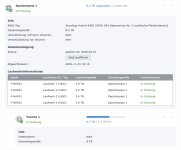
Nein, einen Hinweis auf eine (automatische) Erweiterung finde ich leider nicht.

Hier ein Auszug aus dem Storage Manager:
pool1.jpg

Und via SSH-Abfrage cat /proc/mdstat :
Code:
md2 : active raid5 sata3p5[4] sata2p5[5] sata1p5[6] sata4p5[1]
      8776594944 blocks super 1.2 level 5, 64k chunk, algorithm 2 [4/4] [UUUU]
      
md1 : active raid1 sata4p2[0] sata1p2[3] sata2p2[2] sata3p2[1]
      2097088 blocks [4/4] [UUUU]
      
md0 : active raid1 sata3p1[0] sata2p1[3] sata1p1[2] sata4p1[1]
      2490176 blocks [4/4] [UUUU]
      
unused devices: <none>
 
The storage pool is still 8.2 TB so you would need to enlarge it before you get an option in volume's ... menu to maximize the available space.

You can expand the storage pool via SSH but that's not something I've ever done before.

I would probably just let DSM do it:
  1. Pull drive 1 out.
  2. Mute the beep in control panel.
  3. Connect that drive to a computer and delete all the partitions on it.
  4. Insert that drive back into the Synology.
  5. Click Repair in storage manager.
  6. Wait for the repair to finish.
  7. Repeat the steps for drive 2, then drive 3, then drive 4.
 
Ja, das habe ich auch überlegt. Oder aber eine Sicherung der Daten ziehen, Storage ganz neu und danach die Daten wieder drauf. Eventuell ist das sogar schneller.

Aber die langsame Geschwindigkeit via File Station kann ja damit nix zu tun haben. Vor allem ist es via SSH wie gesagt super schnell und auch das kopieren auf eine externe USB-Festplatte ist zügig via SSH.

Also scheint es ja am DSM / File Station zu liegen?
 
Schau doch zuerst so was wie resourcen monitor an.

Mach dann #14
 

Additional post fields


Kaffeautomat

Wenn du das Forum hilfreich findest oder uns unterstützen möchtest, dann gib uns doch einfach einen Kaffee aus.

Als Dankeschön schalten wir deinen Account werbefrei.

:coffee:

Hier gehts zum Kaffeeautomat